Welcome to the frequently asked questions of ForeverSave 2.
If you have any other questions which are not listed, please visit the support section.
1. I already own a copy of ForeverSave. Can I upgrade to version 2 on the Mac App Store?
If you have already purchased ForeverSave from our Kagi online store and would like to upgrade to version 2, please look for your existing license key and download the new version here. Due to the completely different e-commerce system, it is not possible to upgrade to version 2 on the Mac App Store.
If you purchase ForeverSave 2 on the Mac App Store now, you'll of course have all of its features, including the automatic updating system.
2. I want to use ForeverSave 2 on all of my Macs. Do I need to purchase more licenses?
No, you don't need to purchase multiple licenses as long as you are the only one using them. If your Macs are being used by two or more people, you'll need to purchase additional licenses for them.
For example if two family members use ForeverSave on their iMac and MacBook, they will need two licenses.
When buying on the Mac App Store, please keep in mind that the maximum number of seats is limited to five activations of your iTunes account.
3. I need to purchase multiple licenses. How do I get these and do you offer any discounts?
Multi-licenses can be ordered on our Paddle online store only and not on the Mac App Store. To do so, please visit our store and add your desired quantity next to the ForeverSave 2 product box. Before proceeding to checkout, you may redeem a coupon / promo code starting from three licenses. In order to receive a coupon code, please tell us your plans and we will gladly offer you a special discount.
4. What's new in ForeverSave 2?
The new major features of ForeverSave 2 are:
- Completely re-written from the ground up to provide universal auto-save and backup versioning.
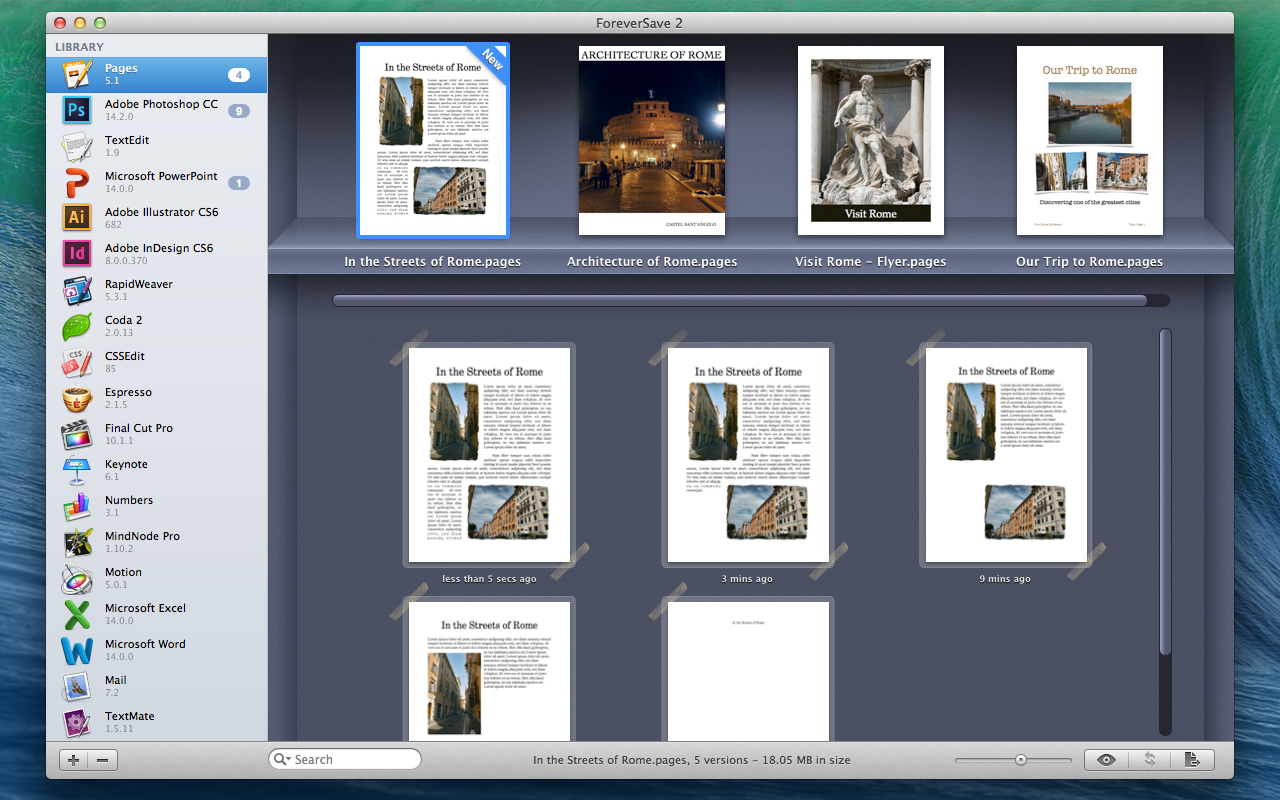
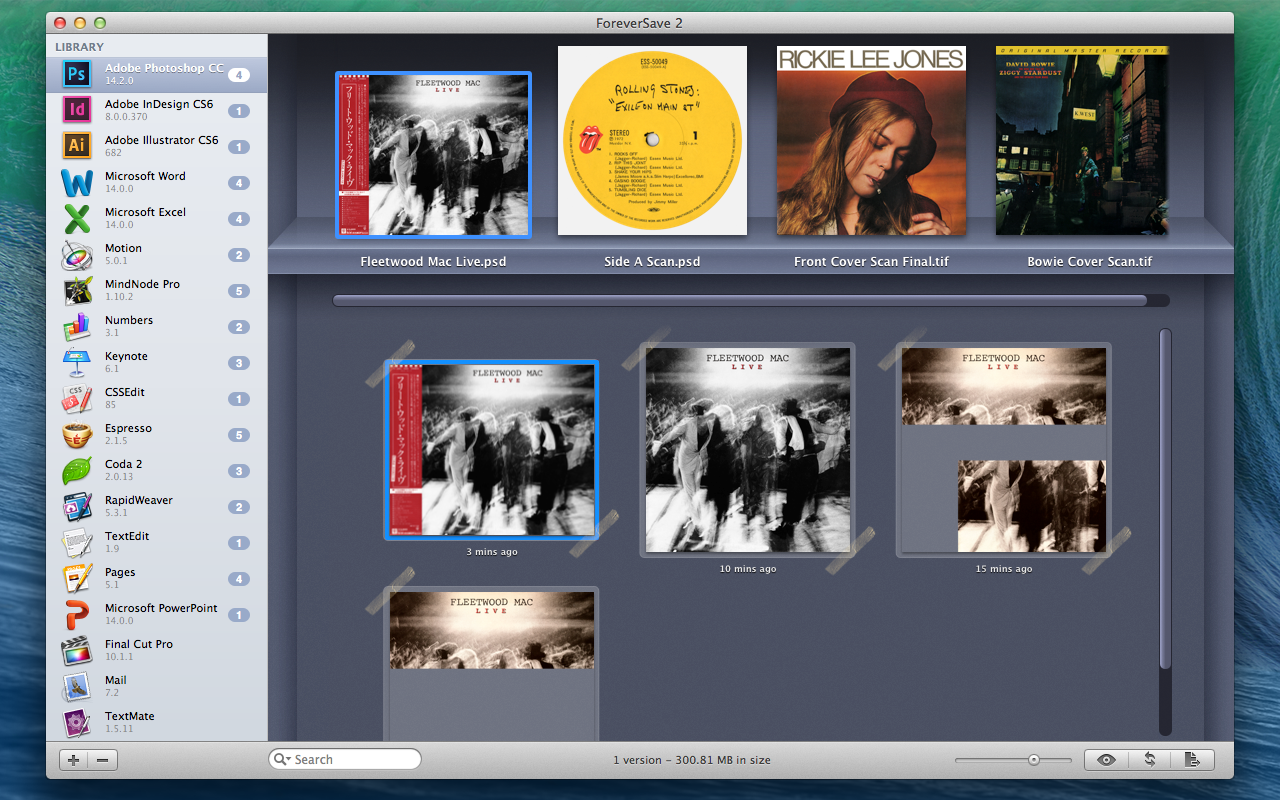
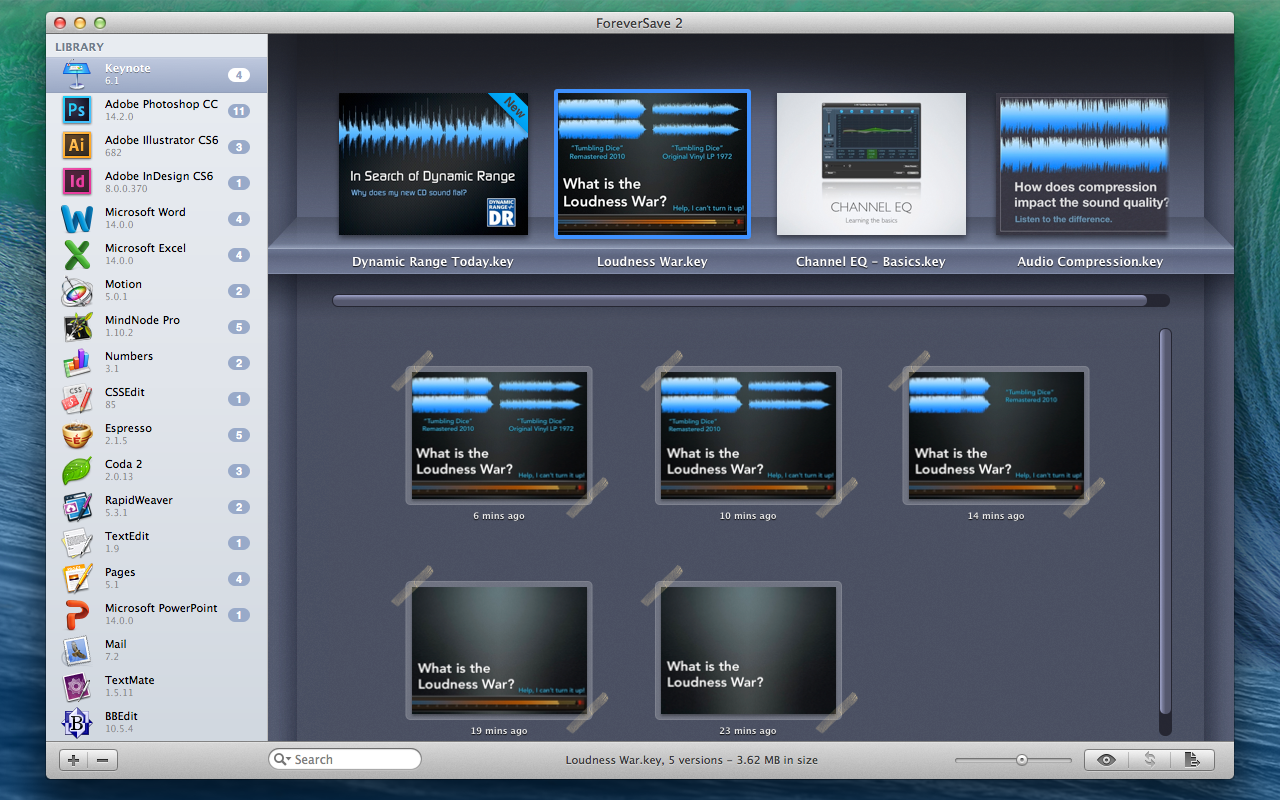
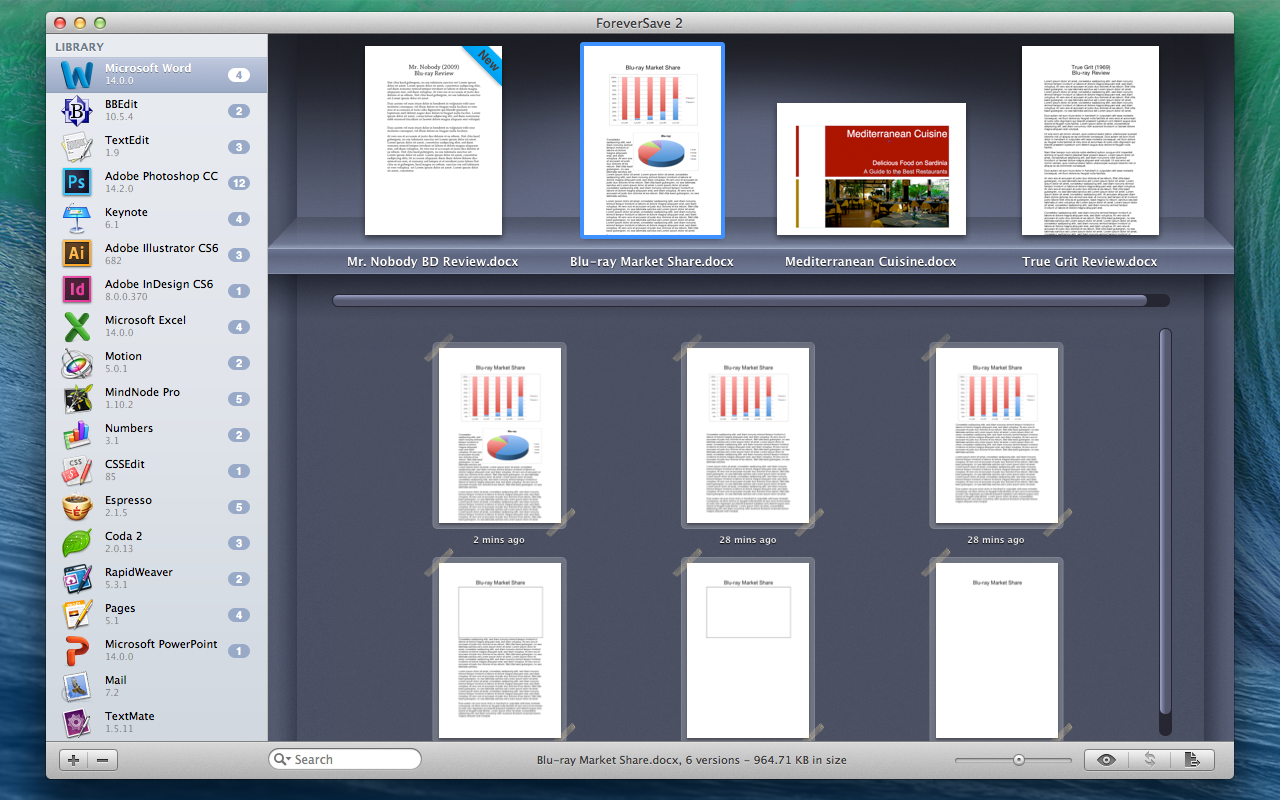
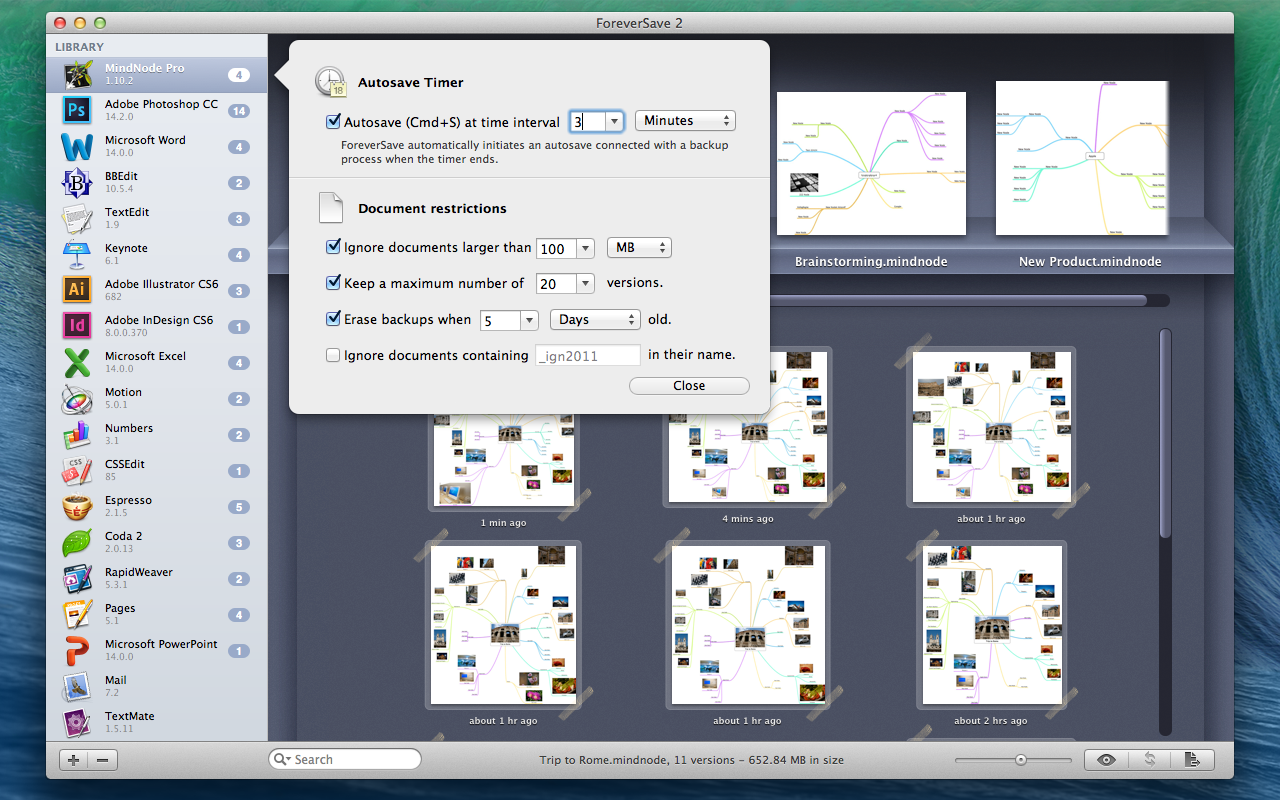
- New one-window layout lets you view backups and their versions at a glance.
- Entirely new designed configuration center that takes only a few seconds to set up.
- Previously incompatible applications are now fully supported.
- ForeverSave 2 is a free upgrade for all existing customer.
5. How do I upgrade from version 1.x. to ForeverSave 2?
Due to a completely new database system, ForeverSave 2 is not able to import files that are stored in your old database of version 1.x. If you have data in your old database you would like to restore, please use ForeverSave 1. In case you trashed the old version, you can still download v.1.1.5 here.
To install version 2 manually, please go through the following steps:
1.) Quit ForeverSave 1 if it's still running.
2.) Download the latest version from our website.
3.) Drag "ForeverSave 2.app" to your applications folder.
4.) Activate ForeverSave 2 with your previously purchased license (name and key).
5.) Re-add your applications to ForeverSave 2's library and configure them to adapt your workflow.
Important note: ForeverSave 2 will not work if an old version, e.g. ForeverSave 1.1.5 still runs in the background.
6. Why does ForeverSave 2 not save and backup some of my documents?
If ForeverSave 2 does not save or backup certain documents, the application is probably either technically totally customized (all kinds of general application guidelines have been simply ignored) or it may be using deprecated technologies, thus it is too old. Because of that, please always use the 30-day trialand check if your applications are compatible before intending to buy ForeverSave 2. If you have found any incompatible applications, please be so kind as to let us know about them so we have a chance to fix the problem and let other ForeverSave 2 users know about the issue.In addition to old or customized applications, there are several possible reasons for documents not being saved.
The most common ones are:
- An older version of ForeverSave (v. 1.x.) is running simultaneously in the background.
- The document name (without extension) is smaller than 3 characters.
- The document lies within a restricted folder (e.g. your User Library, System Folder or Temp folders).
- The document is 0 KB in size.
- The document does not have an extension (e.g. .txt, .pdf, .html).
- You didn't activate ForeverSave 2 - at least for once - on the document by hitting Cmd+S (doesn't apply if "Automatically autosave all documents" is checked on the application).
7. Why does ForeverSave 2 not save and backup my QuarkXPress documents?
Before you start adding QuarkXPress to ForeverSave 2's library, please make sure you have installed the helpful tool "AddSuffix". The problem with QuarkXPress is that all its documents do not have an extension and since ForeverSave 2 always requires to have one, it's absolutely necessary to let "AddSuffix" automatically add .qxp at the end of every new file you create in QuarkXPress.
8. Why does ForeverSave 2 constantly show a dialog asking me to press "cmd + S"?
Due to lots of requests asking for an ability to protect and exclude certain documents (e.g. Master-Documents, Templates), we created a discreet dialog allowing you to decide whether you'd like to add or exclude documents from the auto-save and backup process. If you're not dealing with this issue, you may disable the save reminder.
To do so, please go to View/Edit Advanced Configuration… and enable "Do not show save reminder".
9. Is ForeverSave 2 better that Lion's built-in auto save?
Yes, the top three reasons are:
1. Because applications have to implement the required Lion auto save APIs before they are ready to work with the system, Lion is currently supporting only a handful of applications. Among many other applications, even big players like Microsoft Office 2011 and Adobe Creative Suite CS5 are still incompatible with Lion's auto save, whereas ForeverSave 2 is working perfectly with all of them.
2. To view and restore versions of your documents in Lion, you need to have the file open in the application first. What if there is no restore button because the file itself can no longer be opened because it was accidentally deleted or overwritten? ForeverSave 2 does its job where Lion keeps failing.
3. Lion lets you view versions of just one document at once. There is no way to browse through version histories of different documents of different applications. In contrast to ForeverSave 2, Lion's auto save and version features aren't any helpful when working on several projects at once.
10. What are the system requirements for ForeverSave 2?
- Mac OS X 10.6 Snow Leopard or later
- Intel Mac with at least 1 GB RAM (2 GB or more recommended)
- Internet connectivity for license activation and updates